Drupal · November 18, 2026

A guide to Content Builder: from section type to finished page

A step-by-step guide to Content Builder: create a content section type, add a Content section field, and build pages with it on the regular edit form.

Slides from the talk Meet Content Builder, Open Source Camp Chattanooga, 14 Nov 2026 · PDF, 0.6 MB Download

Content Builder is a contributed Drupal module that turns Layout Builder sections into a field. Content editors add sections and blocks on the content’s regular edit form, next to the title and the other fields, with no separate Layout page.

The work splits between two roles. Site builders decide what content editors can add: which layouts, which blocks and how many. Content editors then build pages within those rules.

This guide walks through both with one example: a “Feature” section that puts an image beside a heading, a short text and a link, on a Landing page content type. The screenshots come from a Drupal 11.4 site with core’s Claro and Olivero themes, the demo site from my talk at Open Source Camp Chattanooga 2026.
Content Builder needs Drupal 11.3 or later, including Drupal 12, and core’s Layout Builder and Block Content modules, which are installed with it. Install it like any contributed module: composer require drupal/content_builder, then drush en content_builder.

Anyone who can edit the content can use the field; there is no extra permission for it. Adding inline blocks and editing their content needs “Create and edit custom blocks”, as in Layout Builder. Creating content section types needs “Administer content section types”. With core’s Help module on, Help > Managing content sections has the same steps as this guide.

Create a content section type

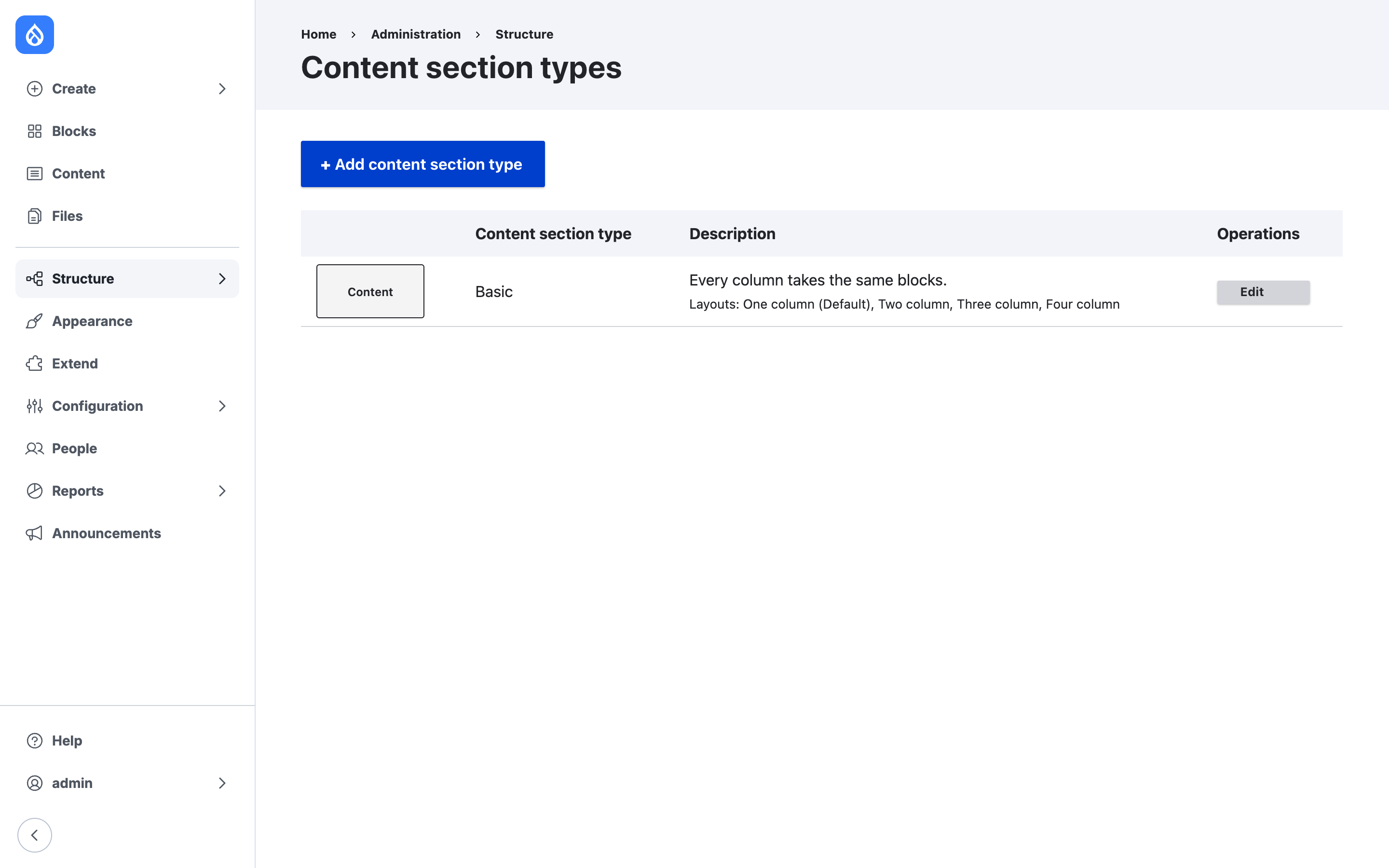
A content section type is like a content type, but for sections: a kind of section with its own rules. Content Builder comes with one, Basic, where every column takes the same blocks, in one to four columns.

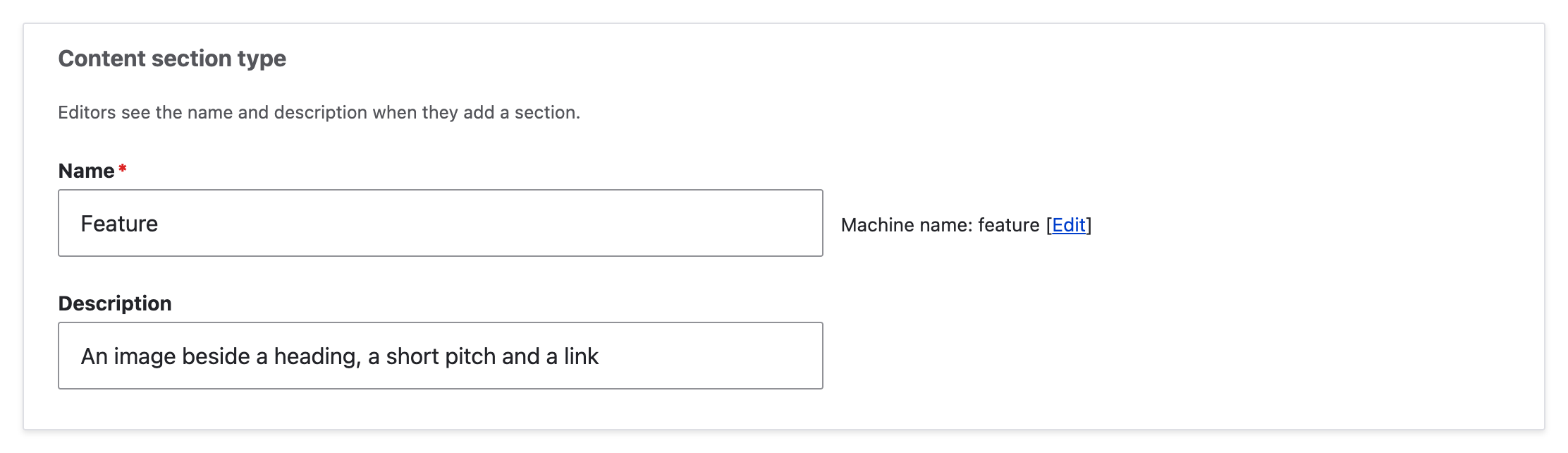
Go to Structure > Content section types and choose Add content section type. Give it a name and a short description; content editors see both when they add a section. The example is Feature: “An image beside a heading, a short pitch and a link”.

The Content section types page lists Basic
The name and description of the Feature content section type

Choose the layout and column widths

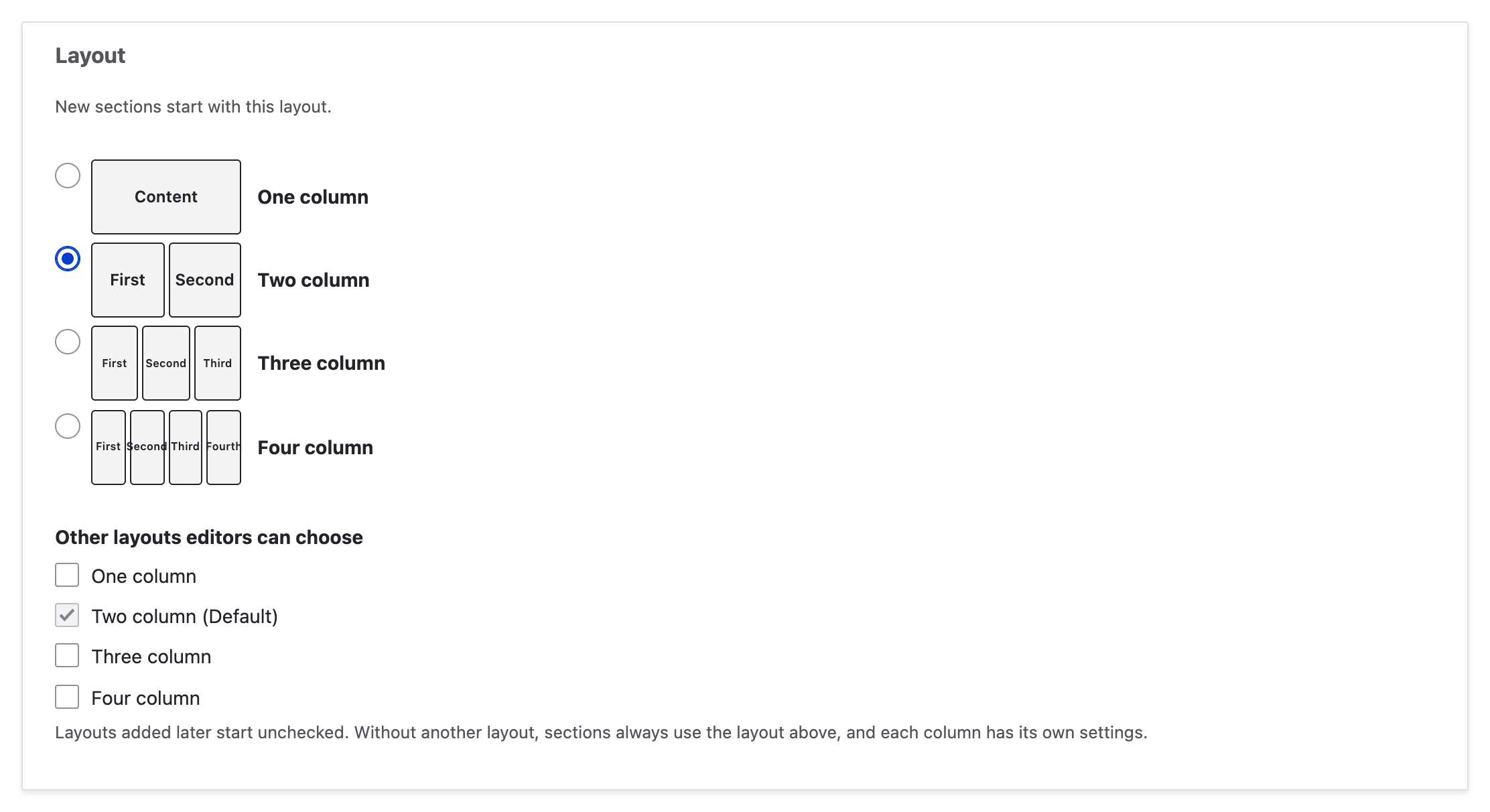
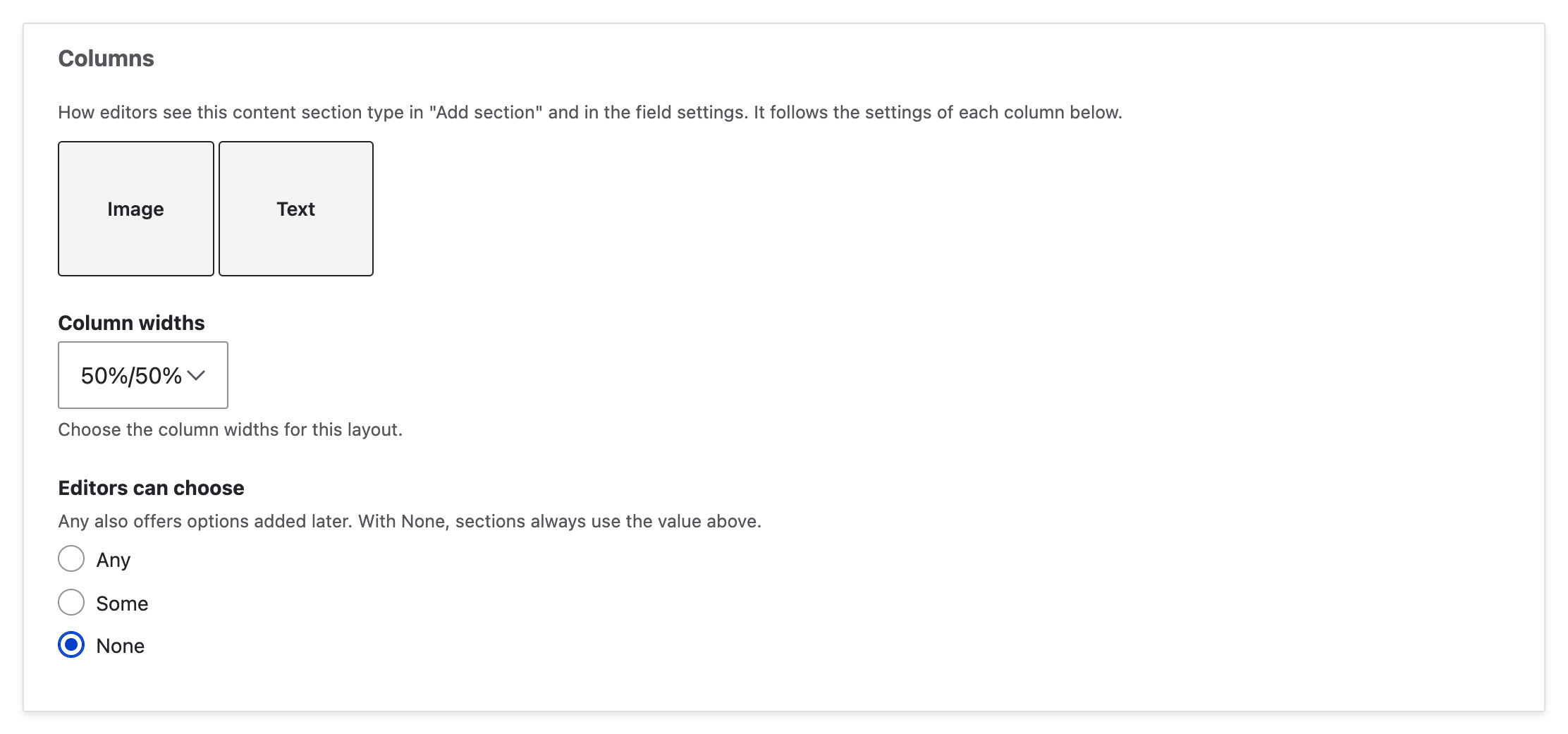
Choose the layout new sections start with, and the other layouts content editors may switch to. Then set the column widths, and under “Editors can choose” whether content editors can change them: Any, Some or None. Feature uses Two column only, at 50%/50% with None, so every Feature section looks the same.

Two column is the layout, and no other layouts are offered
Column widths 50%/50%, editors can choose None

Choose what each column takes

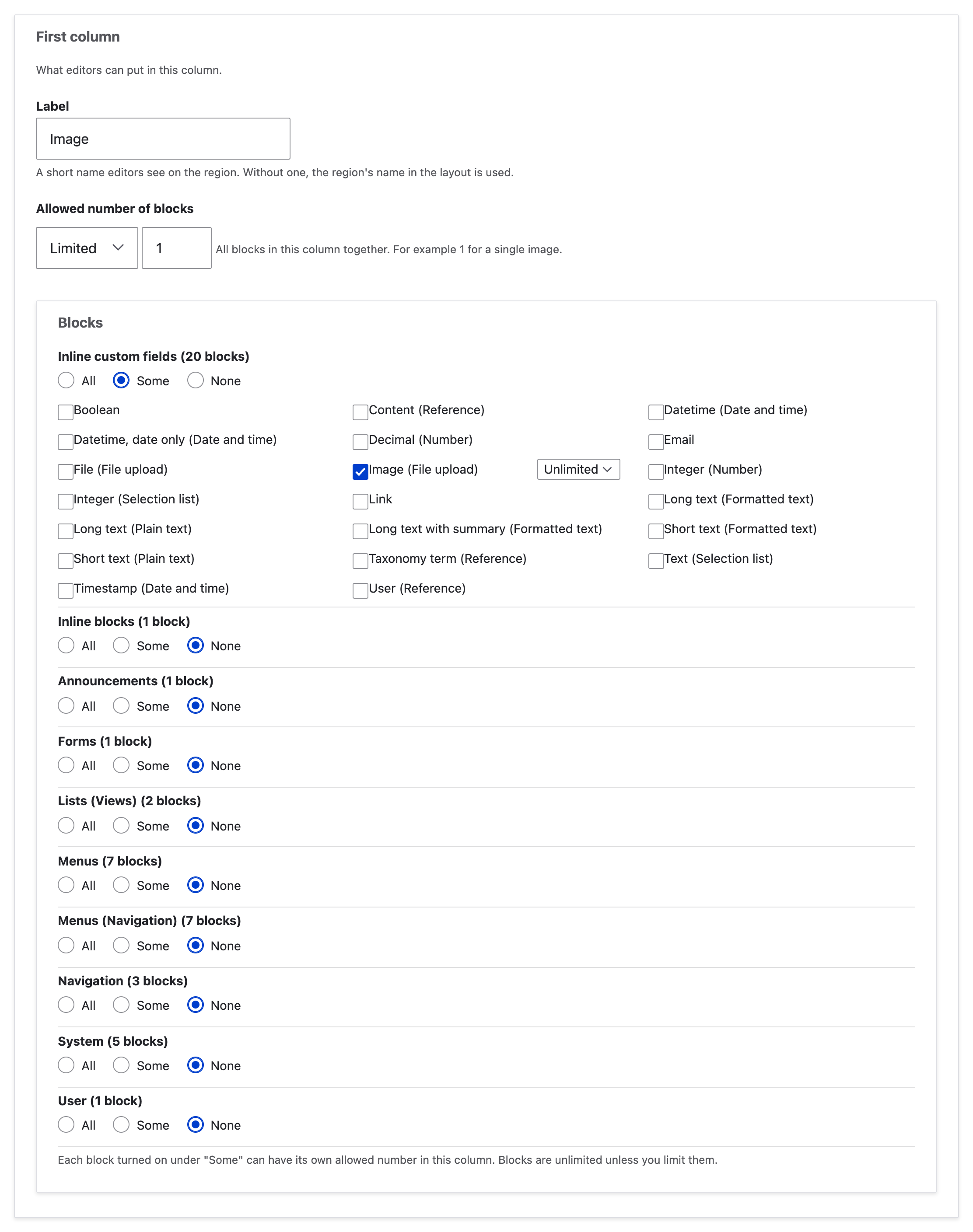
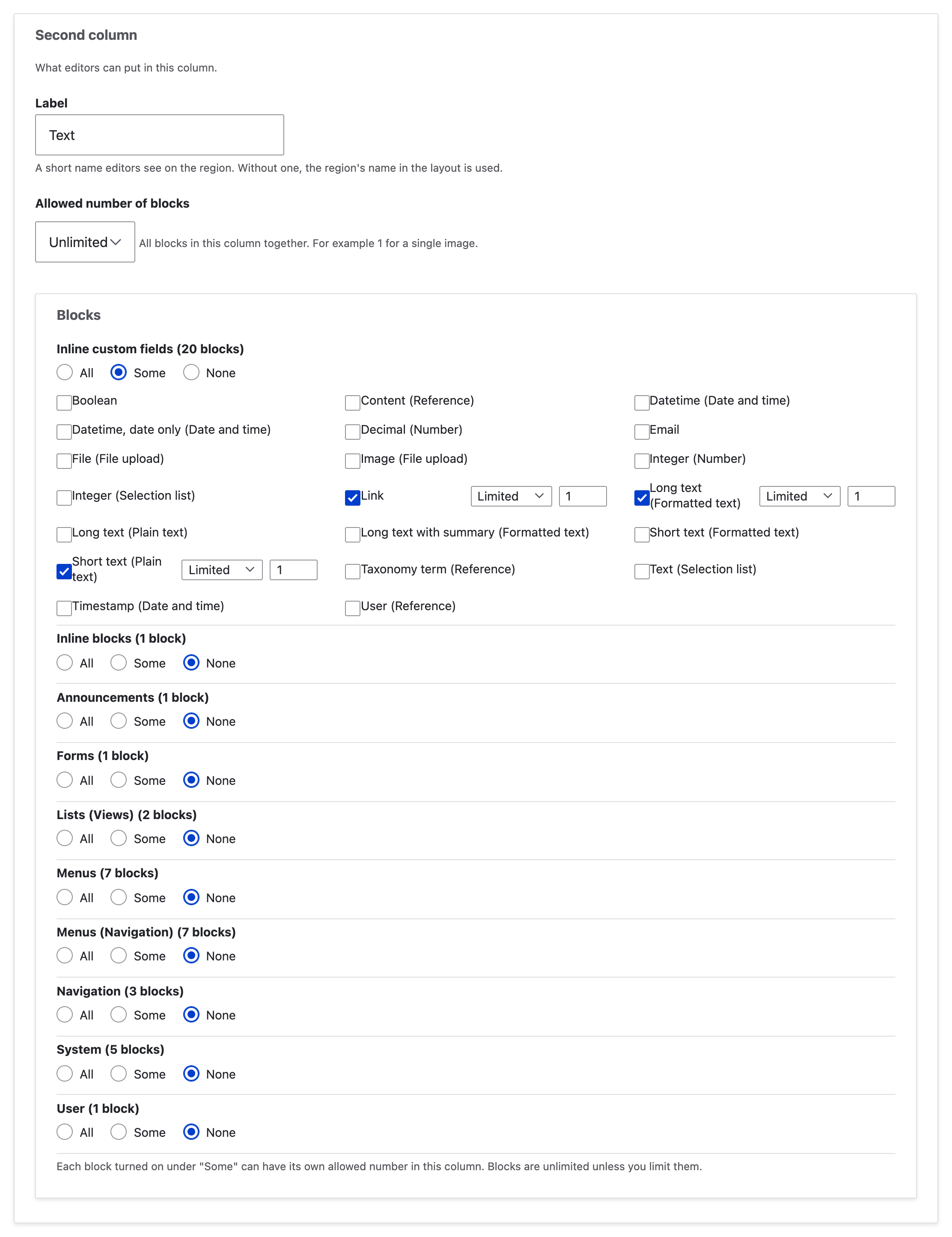
Each column gets a label content editors see, an allowed number of blocks, and the blocks it takes. Blocks are grouped by category, each set to All, Some or None; under Some, each block can have its own limit. In the example:

  • Image (first column): one block in all, and only an Image.
  • Text (second column): one Short text for the heading, one Long text for the pitch and one Link.

These are inline custom fields: any Field UI field type placed as a block, without adding a field to the content type. Content editors edit them with the field type’s widget, and visitors see them through its formatter. Save the content section type when the columns are done.

The Image column takes one block: an inline Image field
The Text column takes one Short text, one Long text and one Link

Add a Content section field

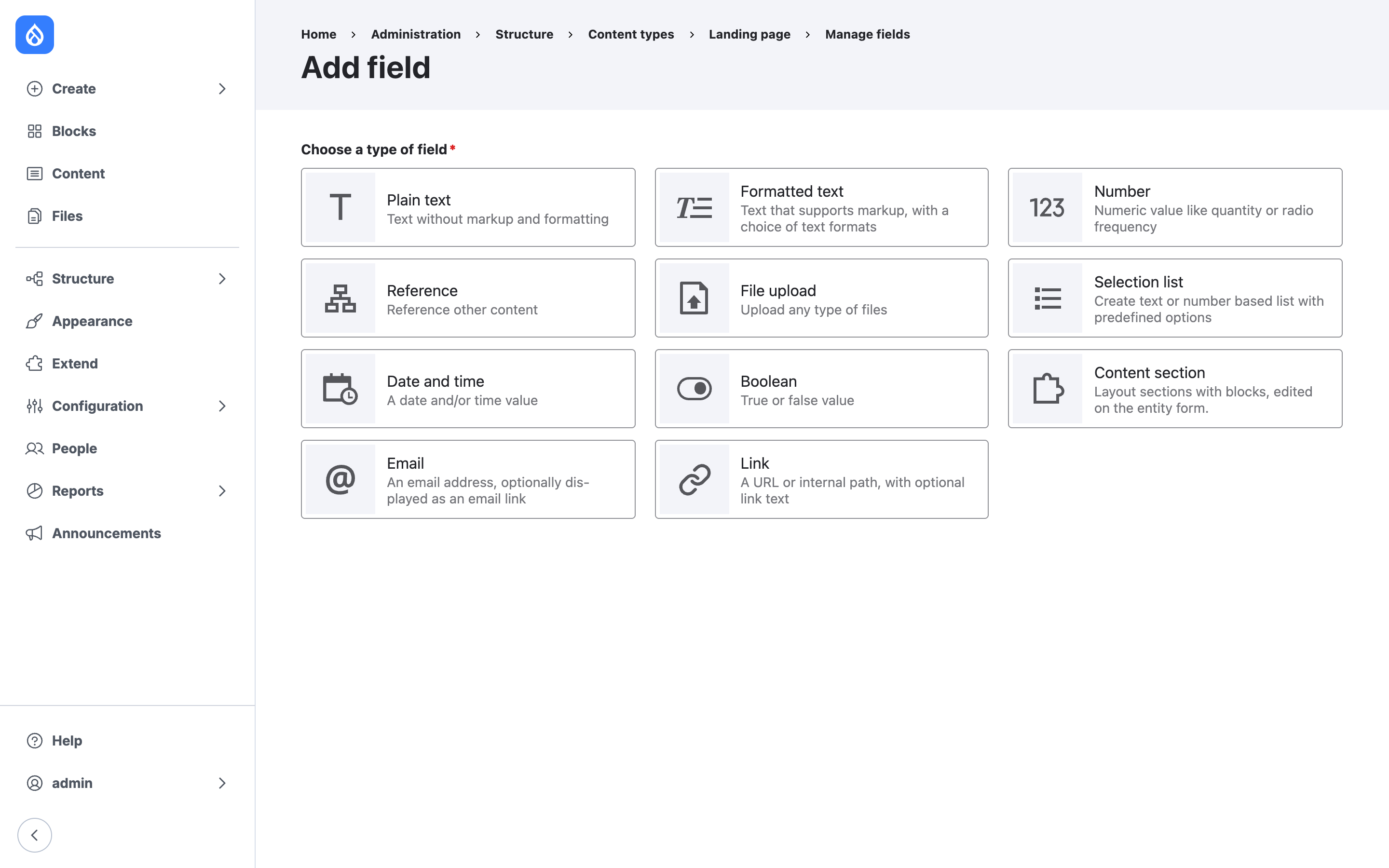
Content section is a field type, so it goes on any content type or other fieldable entity: Manage fields > Create a new field > Content section. The example adds a field called Sections to Landing page.

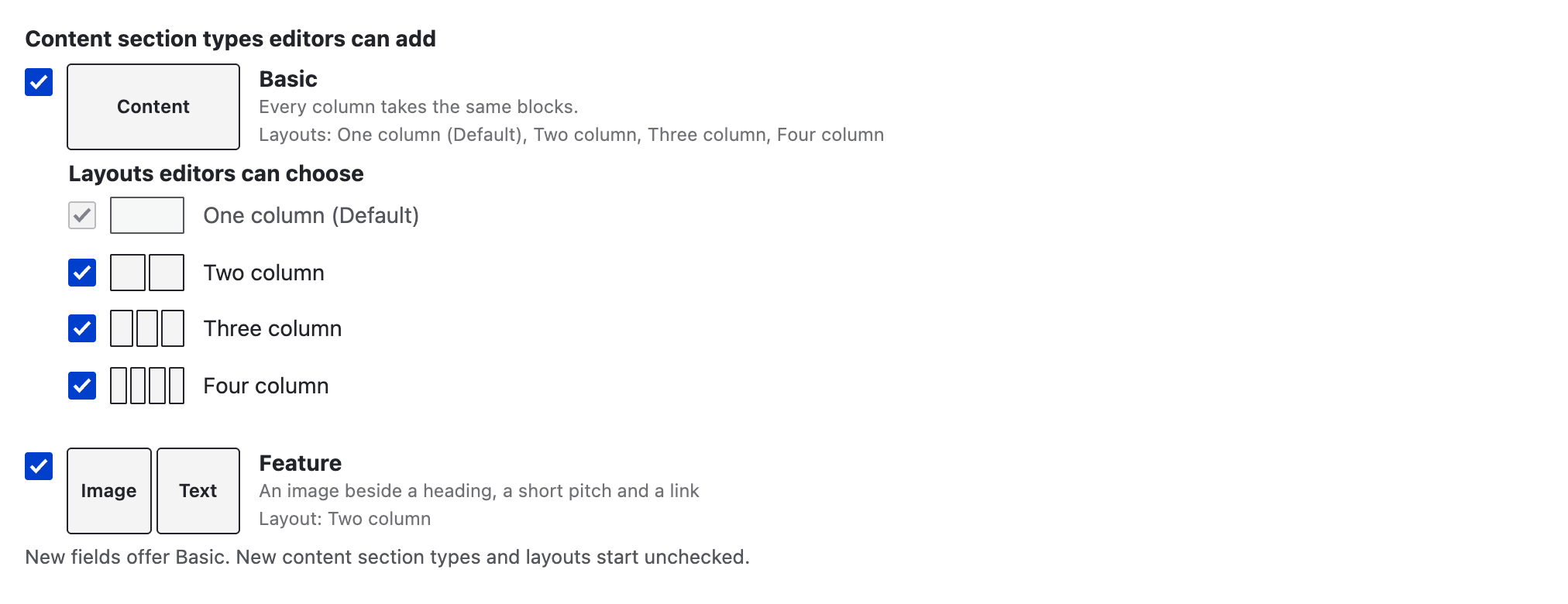
In the field settings, choose the content section types the field offers and, for each, the layouts. New fields offer only Basic, so a new content section type reaches content editors only once you turn it on here.

Content section types and fields are configuration, so they export and deploy with the rest of the site.

Content section among the field types
The field offers Basic with its layouts, and Feature
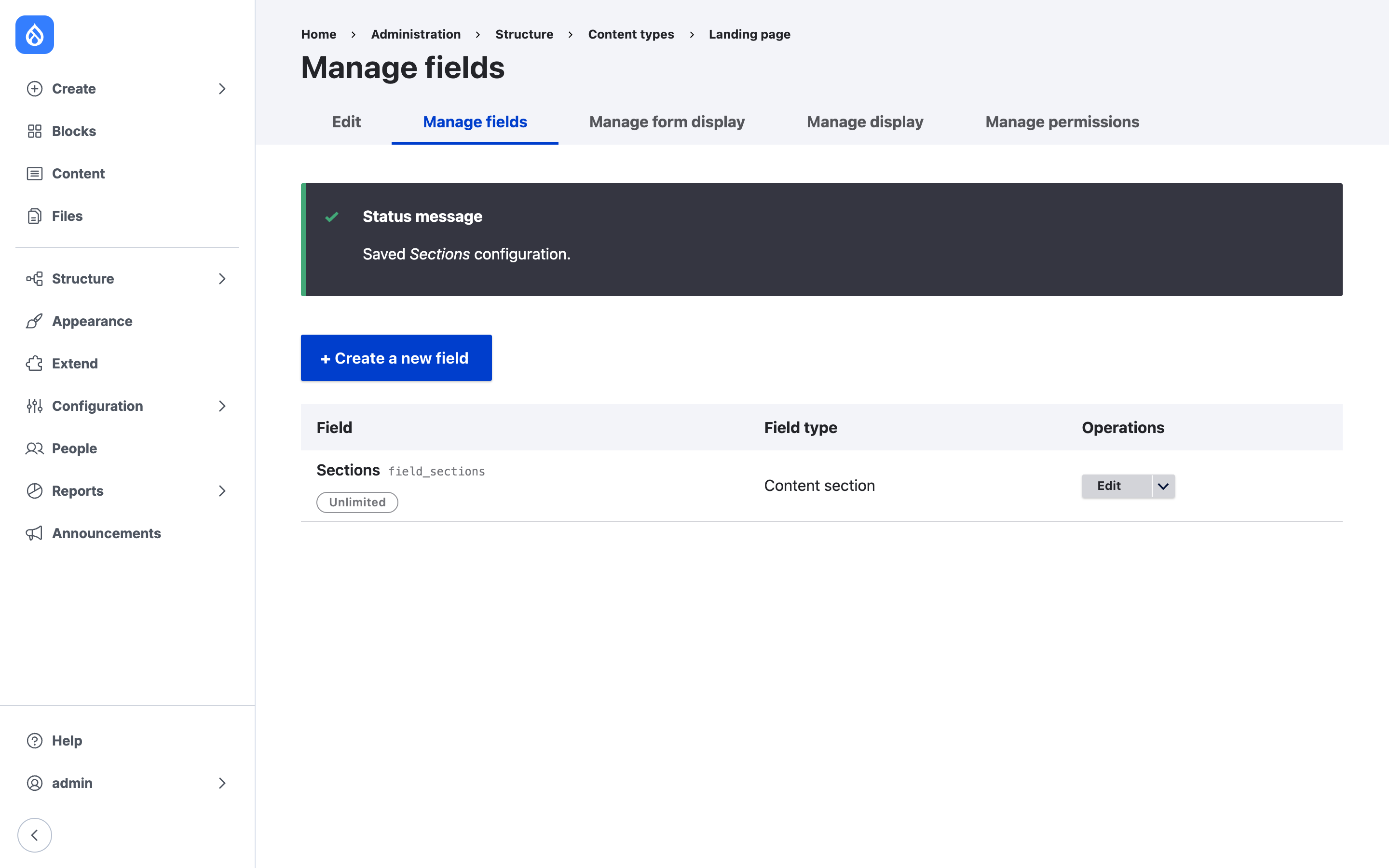
Landing page now has the Sections field

Add a section

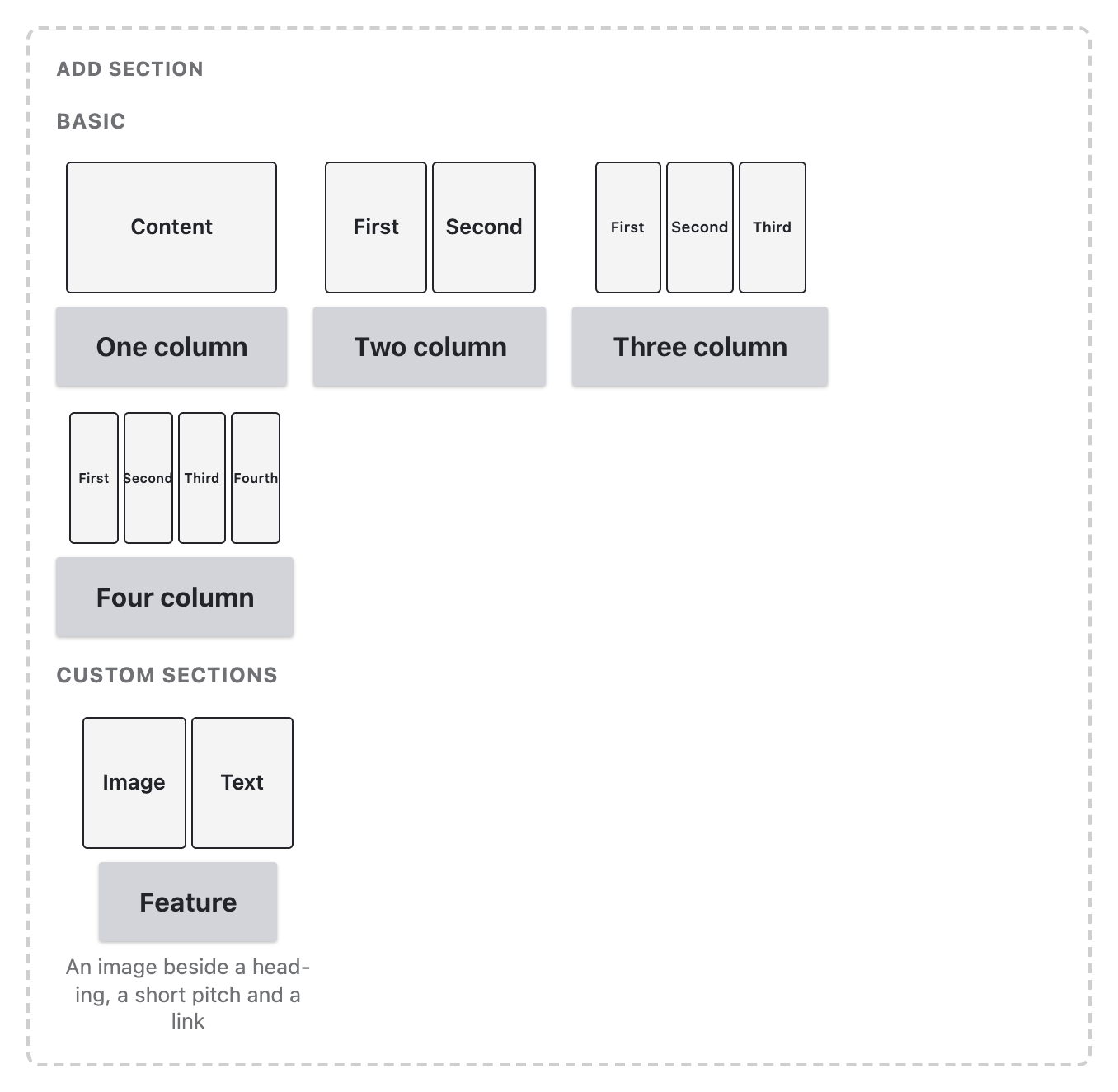
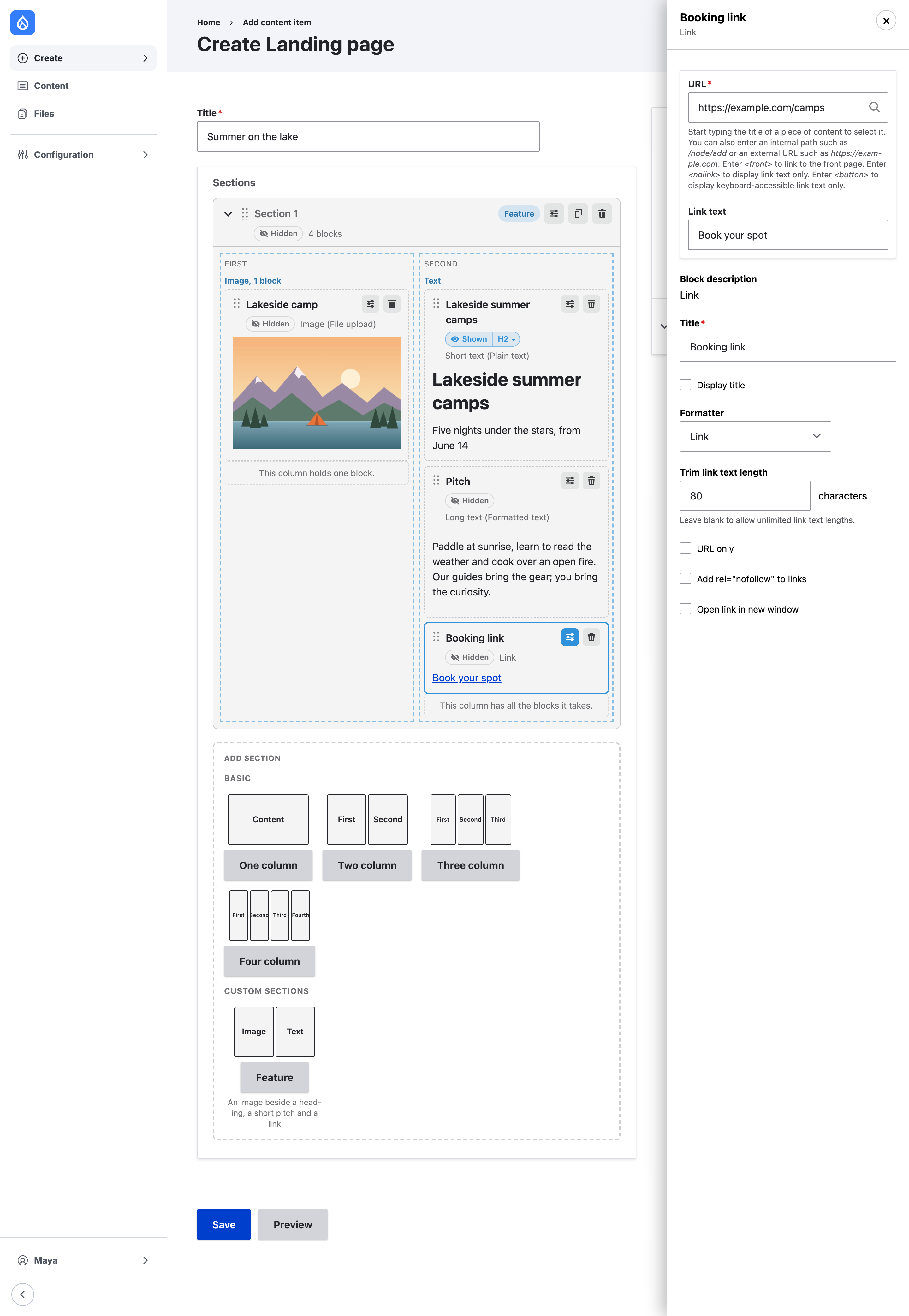
The field sits on the regular edit form, with Add section below its sections. It lists the content section types the field offers, each drawn as its columns, with its description.

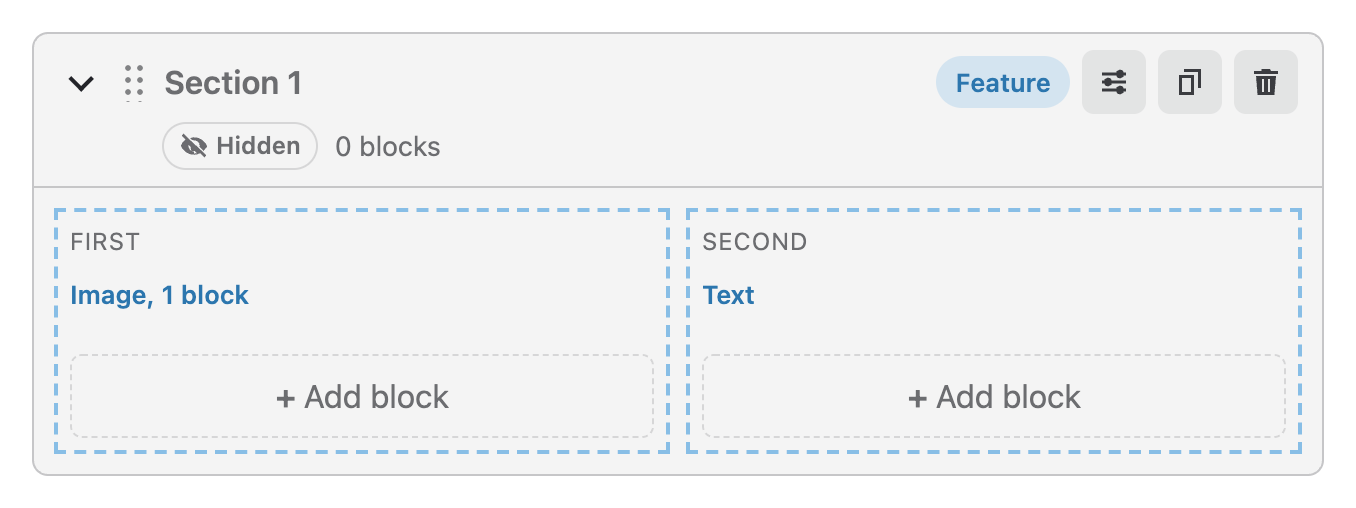
A new section shows its columns with the labels the site builder gave them, and how many blocks each takes, such as “Image, 1 block”.

Add section offers the Basic layouts and Feature
An empty Feature section with its Image and Text columns

Edit section columns

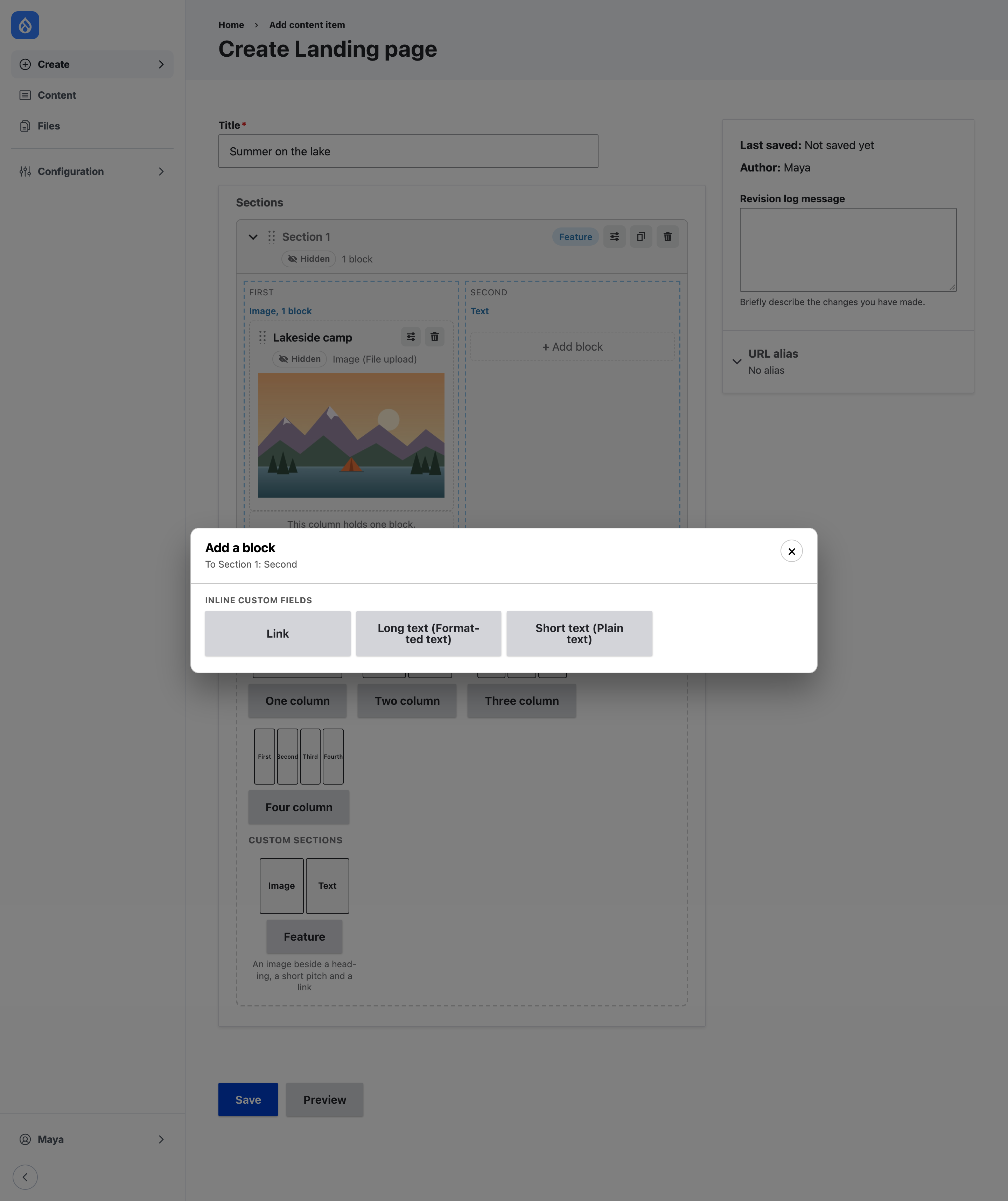
Add block in a column lists only the blocks that column takes. In the example, the Image column offers only Image, and the Text column offers Link, Long text and Short text.

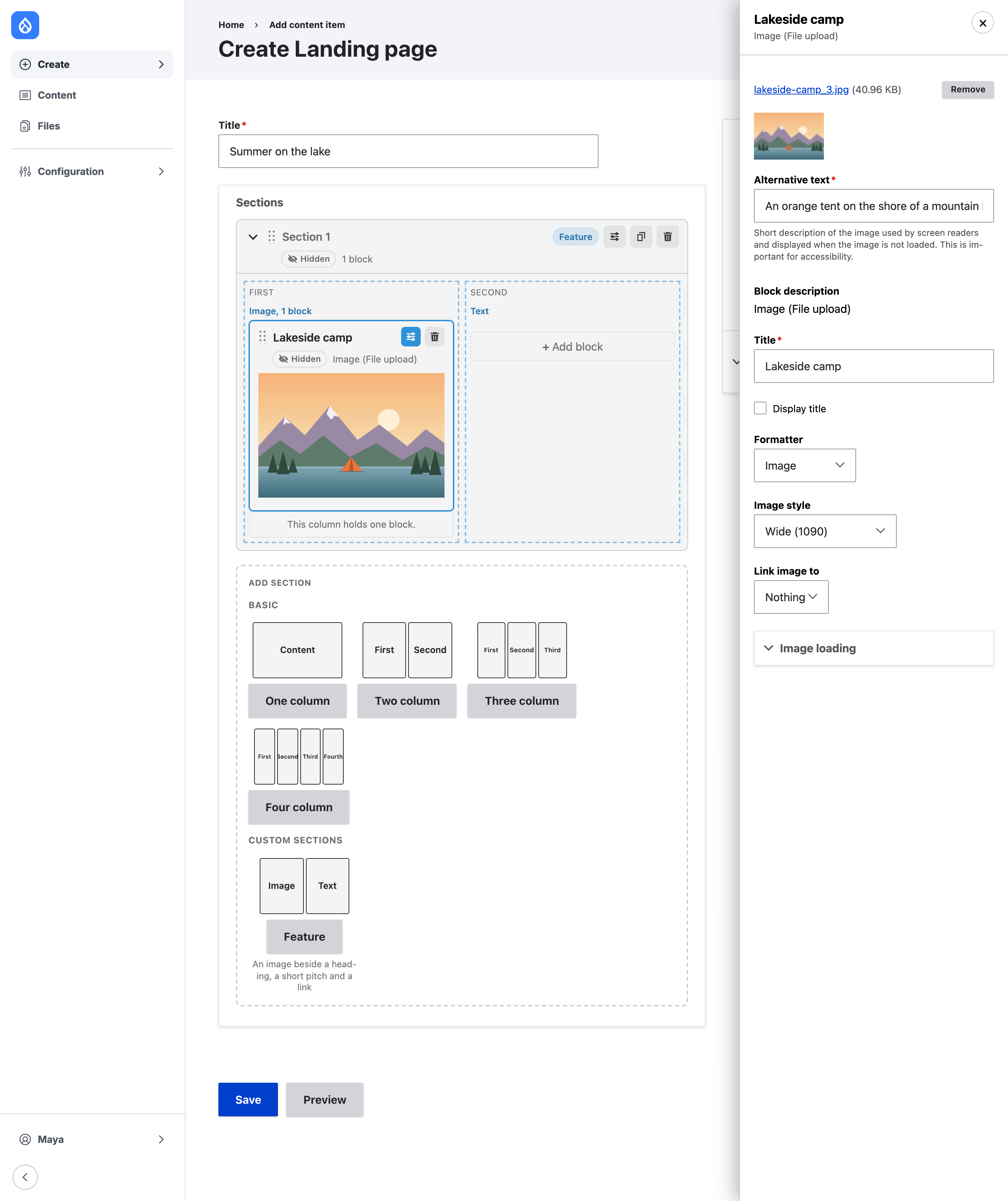
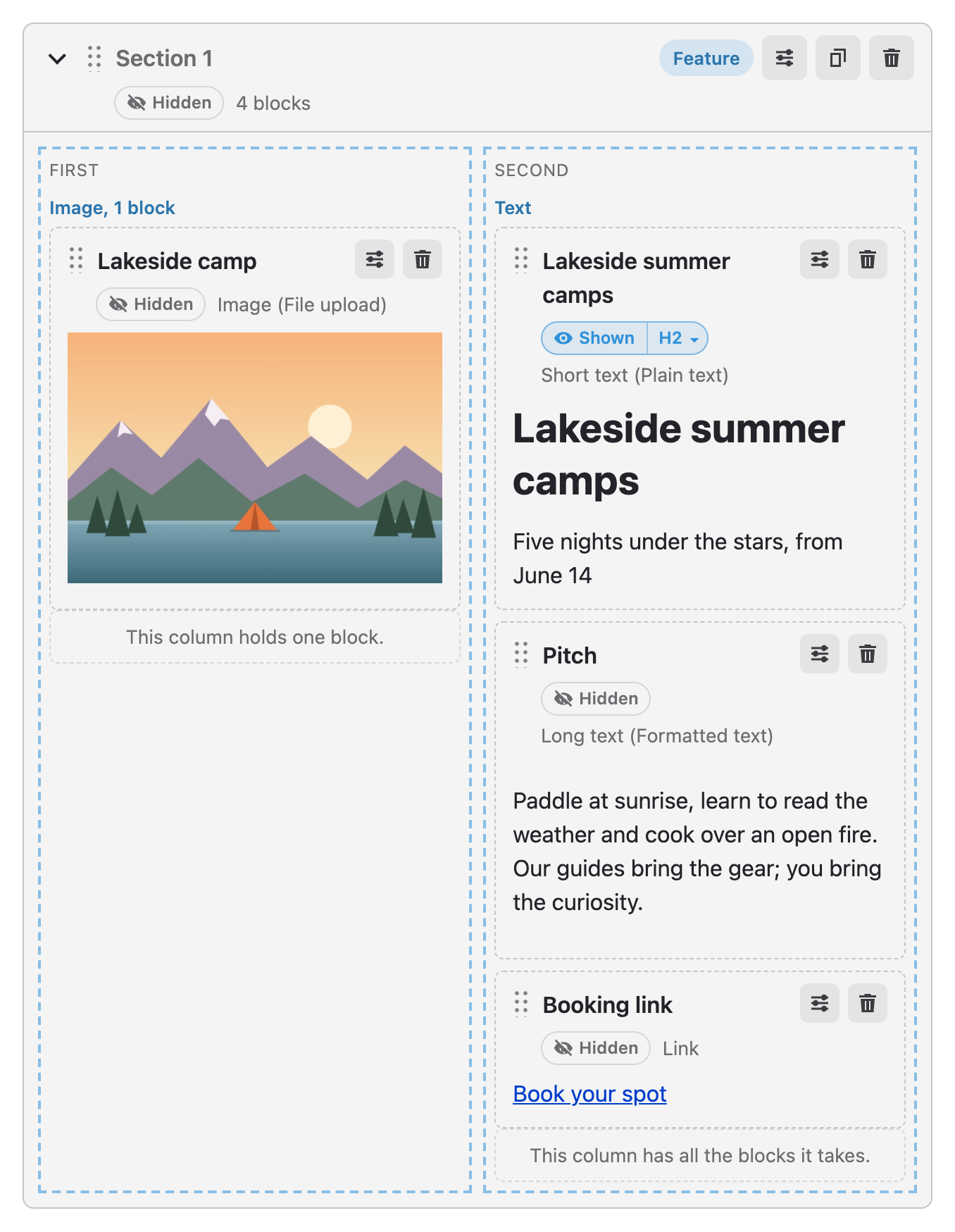
Blocks show as they will look on the page, and each block’s settings open in a panel beside it, so you never leave the form.

When a column has all the blocks it takes, Add block gives way to a note, such as “This column holds one block.” The rules show while you work, not only when you save.

An image block in the Image column, its settings in a side panel
Add a block offers Link, Long text and Short text

Headings and block settings

Each block has a title and its own settings, both edited right on the form.

Headings

Block titles and section labels can be headings. The pill next to a title sets whether it shows and at which level, so the page keeps a proper outline. Here the Short text shows as an H2.

The heading pill on a block: Shown, H2

Block settings

The settings button opens the block’s panel beside it, with what it holds and how it shows: a link’s URL and text, or an image’s alt text and image style.

The Link block’s settings panel: URL and link text

Save and view

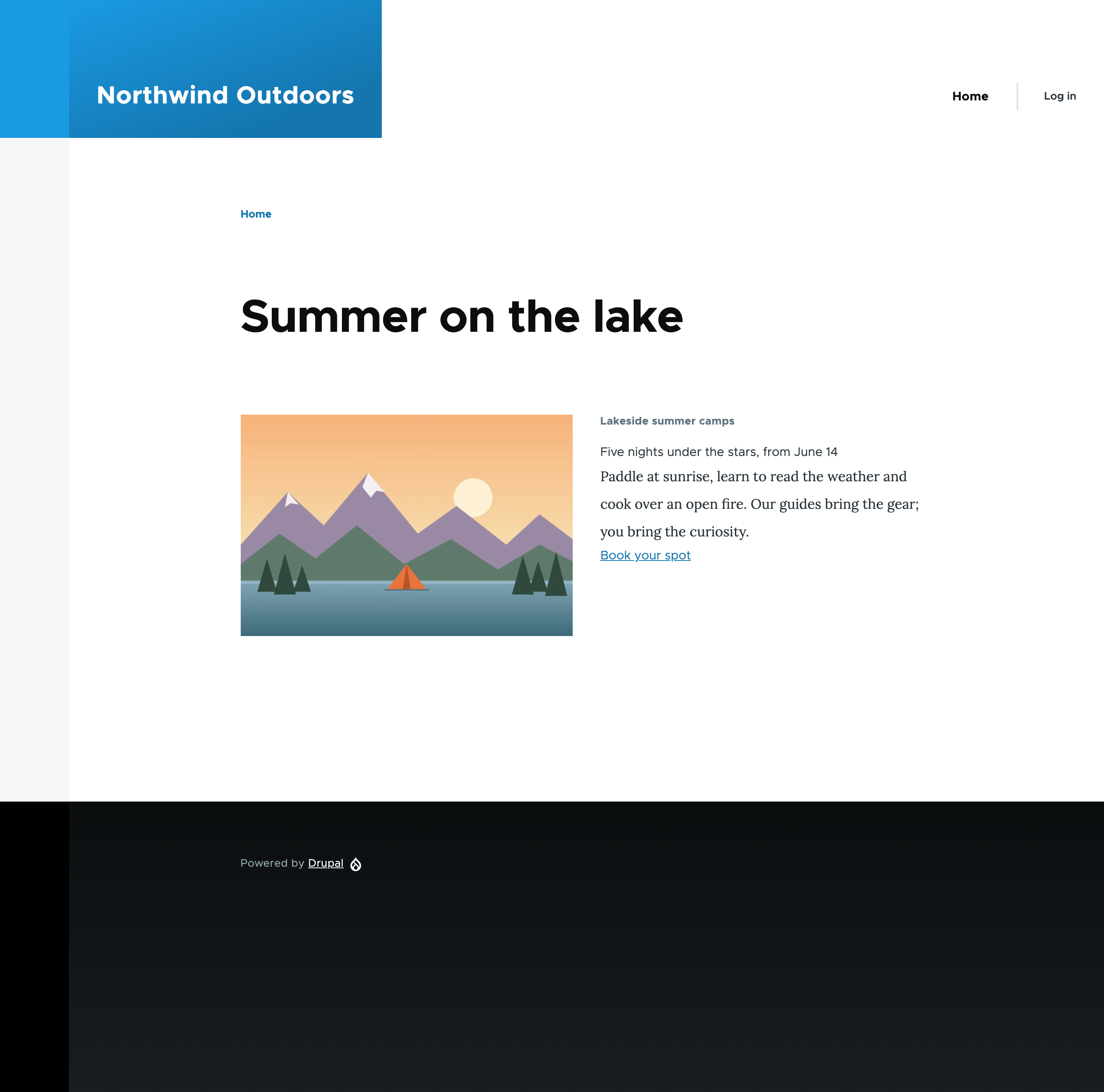
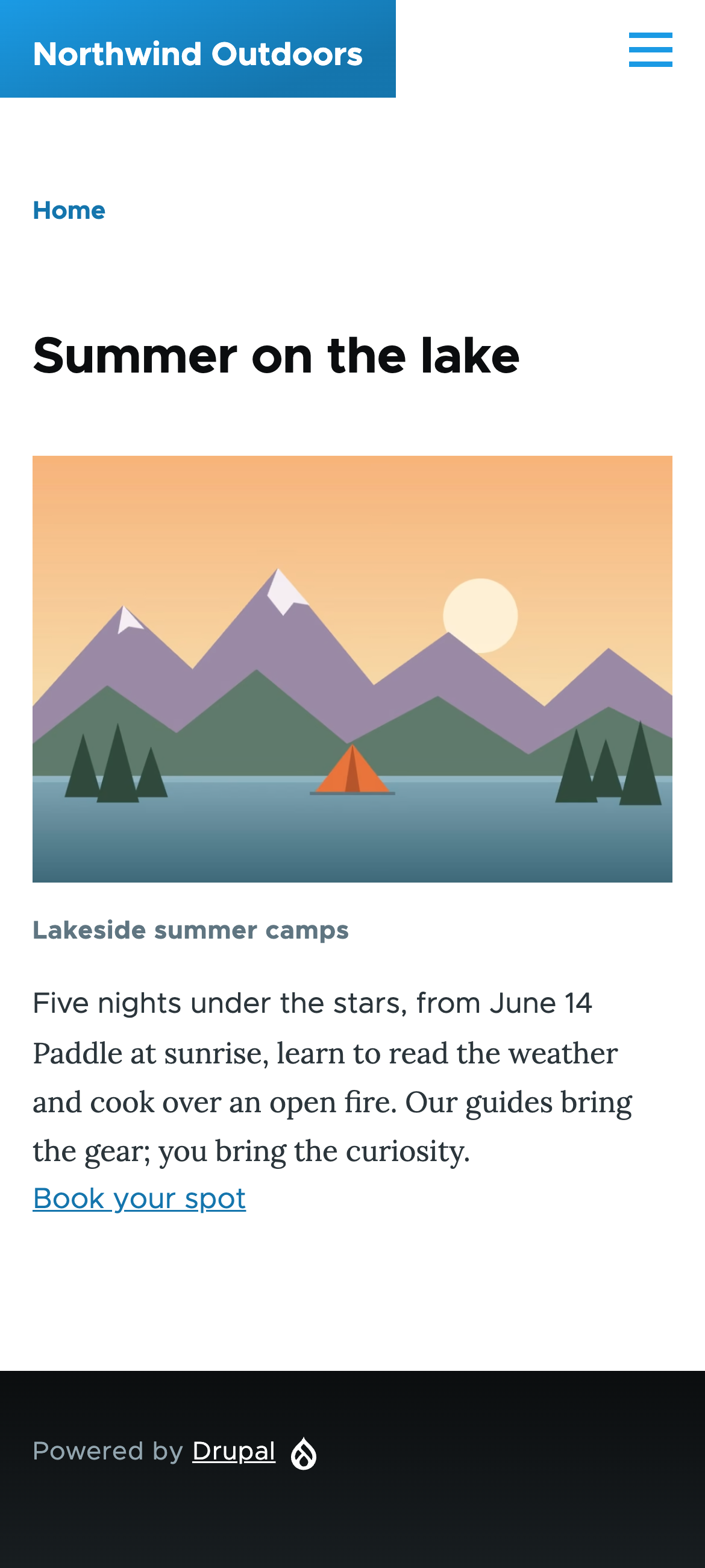
Save the content: the sections save with it, in its revision. Visitors see them in the site’s own theme, because Content Builder renders sections with core’s layouts and blocks, like any Layout Builder page. Two-column sections stack on small screens.

The saved page on desktop
The saved page on a phone

Little here is new. Content Builder reuses core Layout Builder’s sections, layouts, block plugins and inline blocks, and leaves out its Layout page, routes and temporary storage. A content section type is a config entity; the field stores sections the way Layout Builder does.

The module’s README and help topics cover the rest: widget settings, theming, retrieving section data in code and replacing a layout in use. Questions and issues are welcome in the issue queue on drupal.org.